Key Takeaways
- Cell references offer flexibility for specific calculations and custom layouts.
- Excel Tables simplify growing datasets with structured references.
- Structured references make formulas easier to read and maintain.
- Tables help reduce manual range updates in recurring reports.
A spreadsheet can start with just a few rows and a simple formula. But when a business grows, the same workbook may handle thousands of transactions, monthly reports, inventory updates, and recurring calculations.
At that point, a small design decision can make a big difference: should you use traditional cell references such as A2 and B2, or convert your data into an Excel Table and use structured references such as [@Quantity]?
Both methods work. The right choice depends on how your workbook is used, how often its data changes, and how easy it needs to be for others to maintain.
What Is a Cell Reference?
A cell reference tells Excel where to find a value. For example, B2 points to the cell in column B, row 2. Suppose a small business tracks product sales:
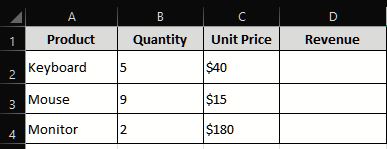
Table 1: Sample sales Data
To calculate revenue, you could enter this formula in cell D2:
=B2*C2
The formula multiplies the quantity by the unit price. When copied down, Excel adjusts the references for each row:
D2:
=B2*C2D3:
=B3*C3D4:
=B4*C4
This is a relative reference. Excel changes the row references as the formula is copied.
Cell references are flexible and familiar. They are especially useful for calculations involving specific cells, custom layouts, or values located in different parts of a worksheet. Microsoft explains how references can point to individual cells, ranges, and cells on other worksheets in its cell reference guide.
What Is an Excel Table?
An Excel Table is a range of data that has a structure and features to assist in the management and analysis of data records. You can create one by selecting your dataset and pressing “Ctrl + T”. If you convert the sales data (Table 1) into a table, then Excel names the table and its columns. With the table name SalesData, the revenue can be calculated as follows:
=[@Quantity]*[@[Unit Price]]
Instead of referring to column B and column C, the formula refers to the column names. The “@” symbol means the current row.
This can help formulas to be more understandable. Anyone who reads the formula can see that it is the quantity times the unit price, without having to verify which columns contain the quantity and which contain the unit price.
The Excel Tables also have built-in filtering, sorting and calculated columns. If you type in a formula in a single cell of a calculated column, the formula will be automatically copied to the rest of the column as you type.
The Same Calculation, Two Different Approaches

The total revenue is $695, regardless of which method you use. With the regular cell referencing, the formula in D2 is:
=B2*C2
With a Table named SalesData, the formula is:
=[@Quantity]*[@[Unit Price]]
The result is identical. The difference is how the formula refers to the data and how it behaves as the workbook changes.
What Happens When New Data Is Added?
It is in this context that choice is particularly important. Suppose that the business records 100 more sales each month. A formula such as:
=SUM(D2:D4)
will not automatically add any new rows that are inserted below row 4, unless the range is subsequently changed or Excel changes it as a part of a related operation.
A table-based formula:
=SUM(SalesData[Revenue])
The Revenue column of the table is called “refers.” The structured reference changes when new records are inserted into the table.
One of the key benefits of Tables in Recurring Workflows is this functionality. Microsoft also points out that structured references update when the table data changes, and auto-extends formulas with calculated columns. Microsoft: Structured references
When Cell References Are the Better Choice
Tables are great, but they don't necessarily provide the best solution for every formula.
Cell references are preferable when:
The calculation uses a specific cell. For example, =B2*$F$1 can multiply a row's value by a fixed tax rate stored in F1.
The worksheet has a custom layout. A financial model may use separate sections, assumptions, and summary areas rather than one continuous dataset.
You need relative, absolute, or mixed references. References such as $A$1, A$1, and $A1 provide precise control when formulas are copied.
You are building a quick calculation. For a one-time formula, a simple reference may be clearer than creating a Table first.
One typical one is a budget model. If the annual growth assumption is entered in F1, then a formula like =B2*(1+$F$1) will explicitly state the assumption. Records are organized into tables. Cell references are very useful for calculations that require a specific position on a worksheet.
When Excel Tables Are the Better Choice
Tables are very useful when data is presented as a list of data records that change over time.
Suppose there is a list of products kept by a business. As each new product is added to the inventory, a new row is added, and the team will regularly filter by category, view stock levels, and calculate inventory value.
This can be made easier by a Table because:
As more rows are added to the table, the table will keep growing.
Filters and sorting are available in the header row.
Calculated columns can be generated by formulas that are filled down.
Structured references have meaningful column names.
Moving or renaming columns may be easier to do with table-based formulas.
For instance, one formula might be:
=SUM(Inventory[Stock Value])
is more easily understood than:
=SUM(G2:G1500)
The first formula is a formula that is clearly identifying the Stock Value column of the Inventory table. The second is based on the understanding of what column G is and if it spans all the necessary rows.
Not all workbooks will be faster when opened in tables. The major benefits of them are structure, auto-expansion, and maintainability. Microsoft also mentions structured references in its
Can You Use Both in the Same Workbook?
Absolutely. Indeed, this is frequently the simplest way to go. The business could keep its sales information in an Excel Table named SalesData, and reference the tables in its dashboard using regular cell names to show important results.
For example:
=SUM(SalesData[Revenue])
A cell with a reference to another cell could be referencing the total revenue result, e.g. $J$19 = $J$17 + $J$18.
=B3
The Table takes care of the changing data set. Cells are used to position and display the outputs on the dashboard.
It doesn't have to be one or the other. Employ the method that clarifies and makes each part of the workbook clearer and more reliable.
Conclusion
Cell references and Excel Tables are not mutually exclusive tools. There are two ways to use formulas with data in Excel. Cell references give you exact reference to the worksheets. The structure, readable formulas and handling of growing datasets in Excel Tables.
When you need to perform a simple calculation for a single fixed number, you might only need a simple cell reference. A Table can minimize maintenance and simplify the workbook for the other users if it is a growing sales log, inventory register, or repetitive business report.
Decide upon the reference style you will use for your data, not necessarily the one you are most comfortable with.
Frequently Asked Questions
Are Excel Tables better than cell references?
Do Excel Tables automatically update formulas when new rows are added?
Are structured references faster than regular cell references?
Should I use Tables for every dataset in Excel?
If you have questions, contact us. Email at support@autobizz.com.