Key Takeaways
- The “Google hasn’t verified this app” warning is normal for unverified Apps Script tools and doesn’t automatically indicate risk.
- Users can bypass the warning safely by clicking Advanced → Go to (unsafe) when the source is trusted.
- Authorization is required only once per Google account unless permissions or accounts change.
- After granting access, the script may run automatically in the background without visible confirmation.
- Common issues (like missing “Advanced” or blocked pop-ups) are usually due to admin restrictions or browser settings.
Getting a "Google hasn't verified this app" warning? Don't worry, here's exactly what to do.
You've just received a Google Apps Script-powered spreadsheet or automation tool and hit a wall with authorization prompts, you're not alone. Google's security screens can feel intimidating, but the process is straightforward once you know what to expect. This guide walks you through every step.
Step 1: Trigger the Authorization Prompt
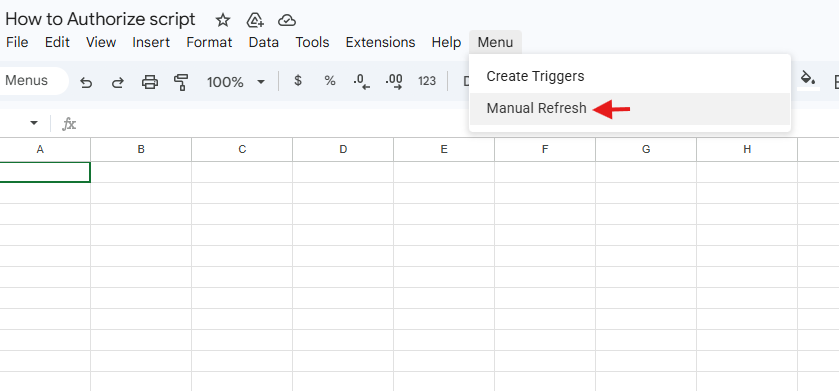
Open the Google Sheet and click the button or menu item that runs the Apps Script function. In most cases, this will be found under a custom menu in the toolbar, for example, Menu → Manual Refresh.
This action kicks off the authorization flow.
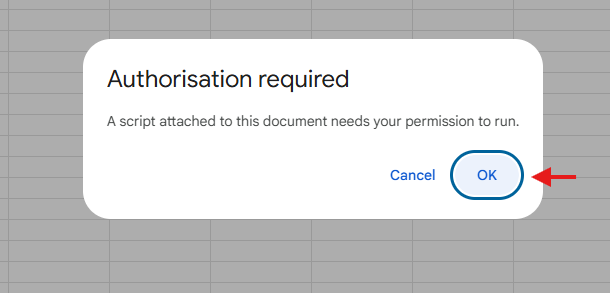
Step 2: Click "OK" on the Authorization Required dialog.
A pop-up will appear saying:
"A script attached to this document needs your permission to run."
Click OK to proceed. Clicking Cancel will stop the script from running entirely.
Step 3: Navigate Past the "Google Hasn't Verified This App" Screen
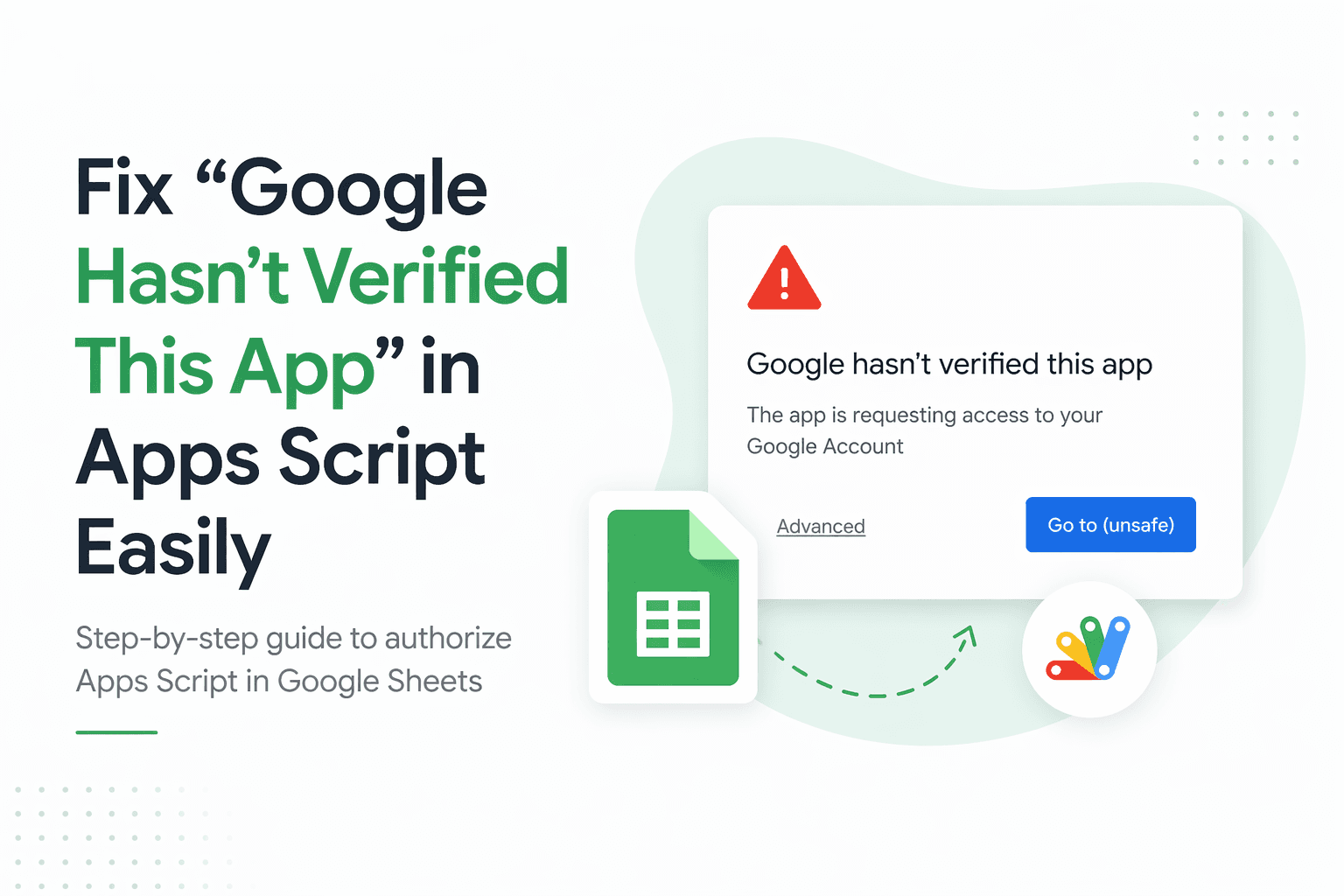
Google will display a warning screen with a red triangle icon. This is standard for unverified third-party scripts; it doesn't mean the script is malicious; it simply means the developer hasn't gone through Google's formal OAuth verification process.
On this screen:
Click Advanced (bottom left)
Then click the hyperlinked project name that appears below; it will say something like "Go to [Project Name] (unsafe)."
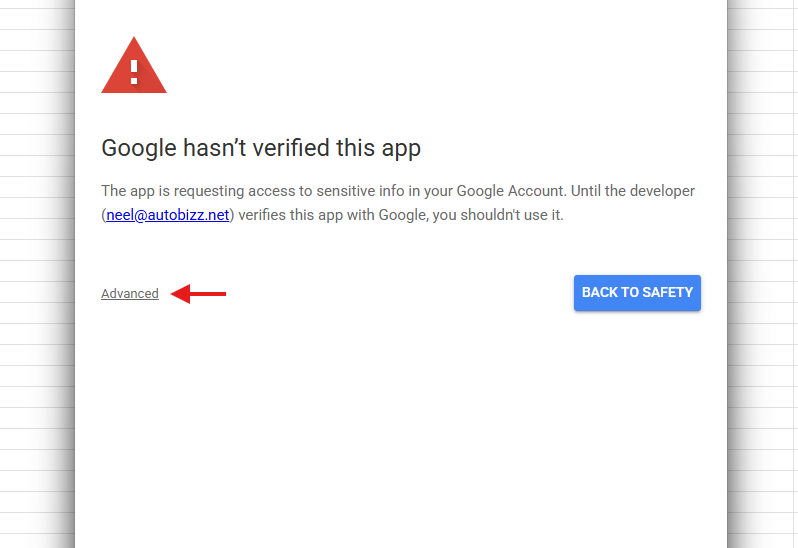
And click on that hyperlinked App Script file name or Google Sheet name based on whatever it shows with "(unsafe)" written beside it:
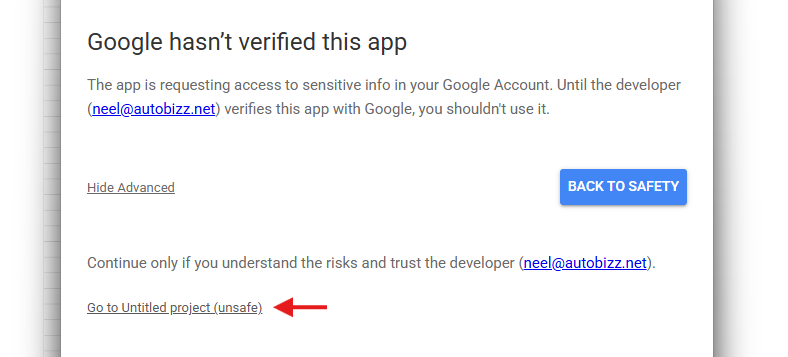
Step 4: Grant Permissions and Continue
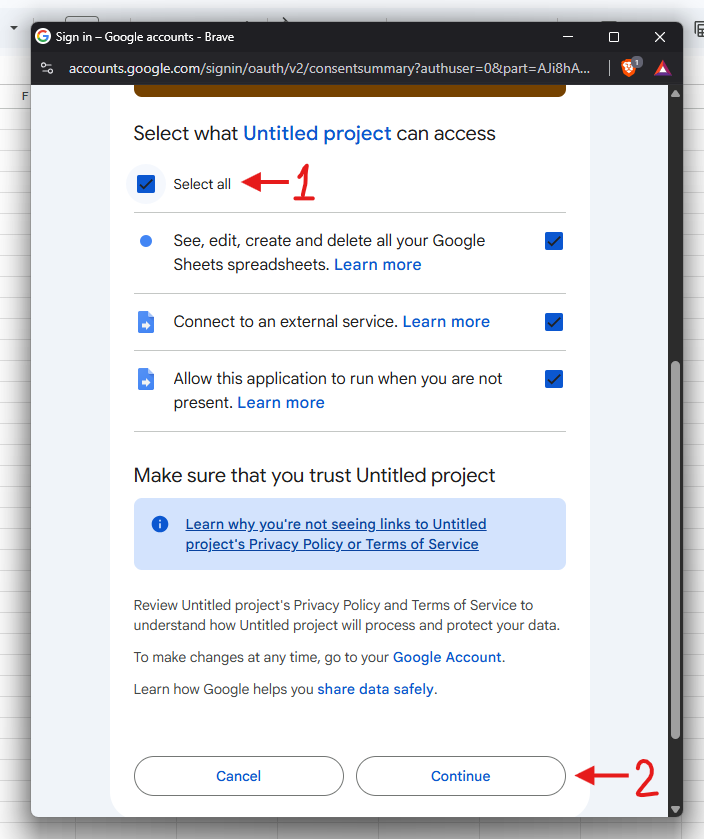
A permissions consent screen will appear listing what the script needs access to (e.g., Google Sheets, external services, running in the background).
Click "Select all" to grant all required permissions
Then click Continue
That's it — you're done! ✅
Note: After authorization, the script will run once automatically in the background. You won't see a pop-up confirming this, that's completely normal.
Please remember, after authorizing, the script does run one time, though it doesn't show any pop-up of a script running.
Frequently Asked Questions
How many times do I need to authorize?
Why does Google say "This app is not verified"?
Why does Apps Script need authorization at all?
I can't find the "Advanced" option. What's wrong?
Why am I still unable to run the script after authorizing?
If you have questions, contact us. Email at support@autobizz.com.